Lensbridge wiki
How to use Lensbridge: install, the Camera Manager, the drone, recording, Showcase Stages, AI assistants, and every tool.
Overview
Lensbridge turns Minecraft into a little film studio. It gives you:
- cameras you can place anywhere
- a drone you can fly
- a browser page to manage your shots
- one-key video recording
- a safe local connection that an AI assistant can use to take screenshots and shoot video for you
This guide is for players. It needs no coding.
Install
Get Minecraft 1.21.11 with NeoForge
Pick the launcher you use:
- Prism Launcher: Add Instance → Minecraft 1.21.11 → Mod loader NeoForge → OK. Right-click the instance → Folder → open
mods. - CurseForge app: Minecraft → Create Custom Profile → 1.21.11, NeoForge → Create. On the profile, ⋯ → Open Folder →
mods. - Modrinth App: + → 1.21.11, NeoForge → Create. Instance → ⋯ → Open folder →
mods. - Official launcher: run the NeoForge 1.21.11 installer from neoforged.net → Install client, start the neoforge profile once, then open
.minecraft/mods(%APPDATA%\.minecraft\modson Windows,~/Library/Application Support/minecraft/modson macOS,~/.minecraft/modson Linux).
Add Lensbridge
- Put
lensbridge-<version>.jarin thatmodsfolder (don't unzip it). - Lensbridge only runs on your computer (the client). Servers don't need it, and it works on any server.
Install ffmpeg (for video)
Stills work without it; videos need it.
- Windows:
winget install Gyan.FFmpegin Terminal - macOS:
brew install ffmpeg - Linux: your package manager
- Restart Minecraft afterwards.
Start the game once. Lensbridge creates config/lensbridge.json; you don't need to edit it.
Your first five minutes
| Key | What it does |
|---|---|
| Alt+T | Place a camera (a "tripod") exactly where you're looking from |
| Alt+N | Look through your cameras one by one; keep pressing to cycle, and it ends back at you |
| Alt+D | Fly the drone camera |
| Alt+R | Start / stop recording a video |
| Alt+C | Open the Camera Manager in your web browser |
| Alt+P | Show or hide your cameras as props in the world |
| Esc | Get out of any camera mode and back to your own view |
You can change every key under Options → Controls → Key Binds → Lensbridge Camera. They all use Alt so they don't clash with map and minimap mods.
Try this:
- Stand somewhere with a nice view and press Alt+T. That's camera 1.
- Walk to another spot, look at the same thing, and press Alt+T again. That's camera 2.
- Press Alt+N to look through camera 1, again for camera 2, and again to come back.
- Press Alt+C. Your browser opens with both cameras and a little picture of what each one sees.
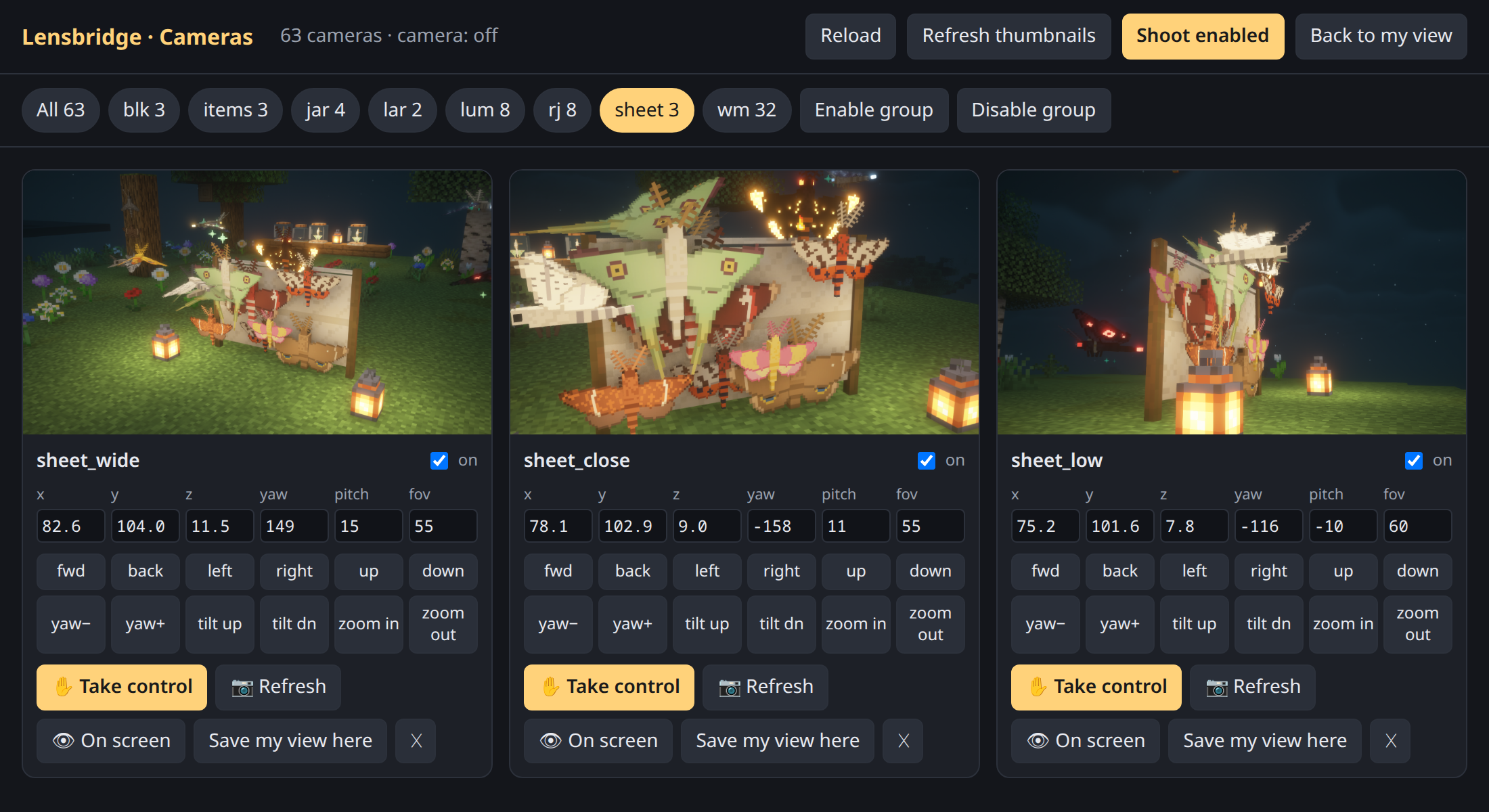
The Camera Manager (Alt+C)
A web page on your own computer (http://127.0.0.1:25599/ui) where you can see and adjust every camera.
Each camera card shows:
- a thumbnail of what the camera sees
- an on switch: only cameras that are on are used for "Shoot enabled" and multi-angle videos
- its position and angle numbers (x, y, z, yaw, pitch, fov), which you can type into directly
- nudge buttons: fwd/back, left/right, up/down, yaw, tilt, zoom. The thumbnail updates after each nudge.
- ✋ Take control: fly this camera yourself (see below)
- 📷 Refresh: re-take the thumbnail
- 👁 On screen: look through this camera in game
- Save my view here: put the camera exactly where your view is right now
- ✕: delete the camera
Delete group (at the top, once a group is selected) removes every camera in that group in one go.
At the top of the page:
- Group buttons: cameras whose names start the same way (
hero_1,hero_2...) form a group. Click a group to show only those, and use Enable group / Disable group. - Refresh thumbnails: re-take all thumbnails in view.
- Shoot enabled: take a full-size picture from every enabled camera, plus one overview sheet.
- Back to my view: if you're looking through a camera, this returns you to your own eyes.
- Show cameras in world (also Alt+P): see your cameras as props in the world. Your shots stay clean.
- Copy connect command: copies the command that connects Claude Code (see section 9).
- Help: opens this guide.
Taking control of a camera
The best way to get an angle exactly right:
- Click ✋ Take control on a camera card, then click back into the game.
- You're now flying that camera:
- WASD to move, Space / Shift for up and down
- Sprint (Ctrl) to move faster; it's slow by default for fine adjustments
- Mouse to look around
- Scroll wheel to zoom (field of view)
- Press Enter to save the new angle. Press Esc or Backspace to cancel and keep the old one.
The thumbnail updates on its own when you save.
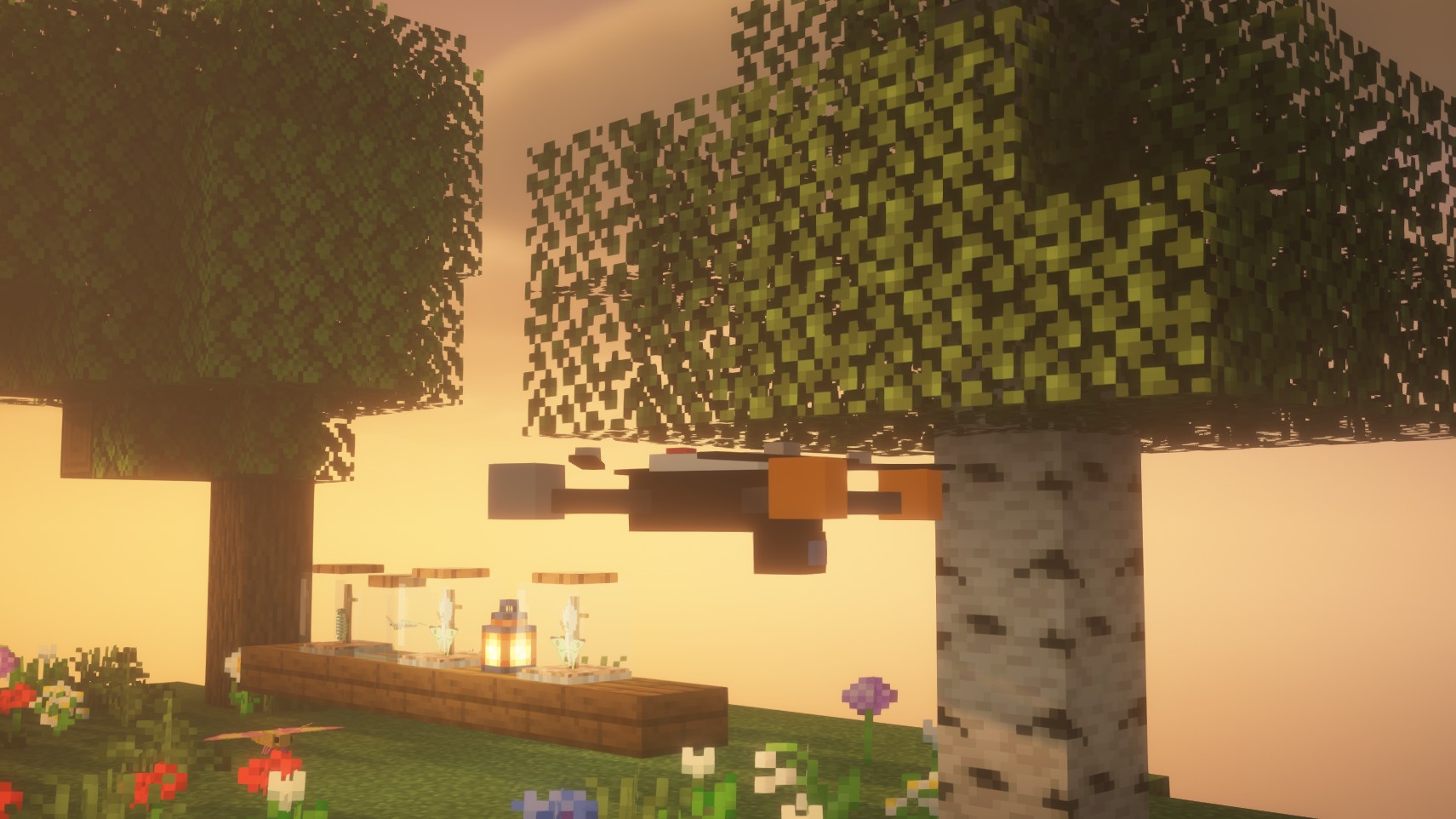
The drone (Alt+D)
Press Alt+D and your view lifts off as a camera drone. Your character stays where it is.
- WASD to fly, Space / Shift to go up and down, Sprint for speed
- Mouse to turn and tilt the camera
- Alt+D or Esc to land and return to your own view
While flying, you can press Alt+R to record, or Alt+T to drop a camera at the drone's position.
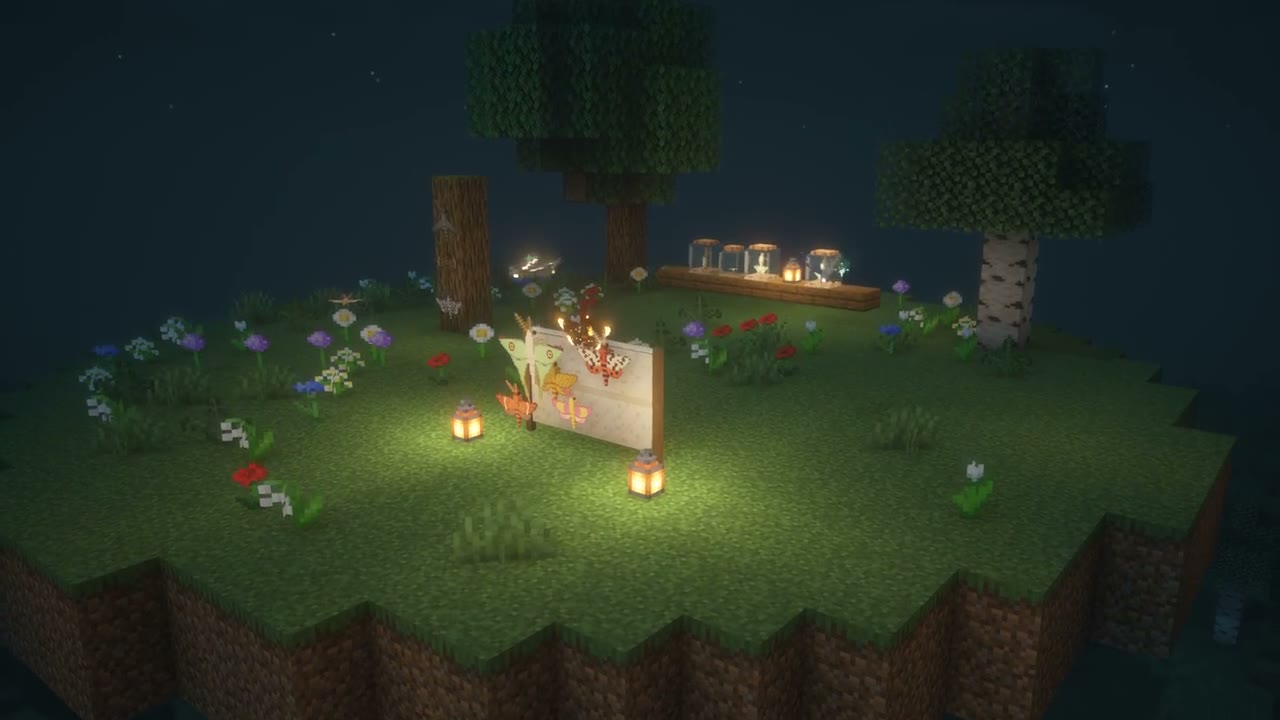
Recording video (Alt+R)
- Press Alt+R to start and Alt+R to stop. The HUD hides while recording, so the video is clean.
- Videos are real time: 10 seconds of game is a 10-second video.
- Videos land in your instance folder under
lensbridge/videos/. Screenshots go inlensbridge/screenshots/. - Recording works from your own view, the drone, or any camera you're looking through.
Seeing your cameras in the world
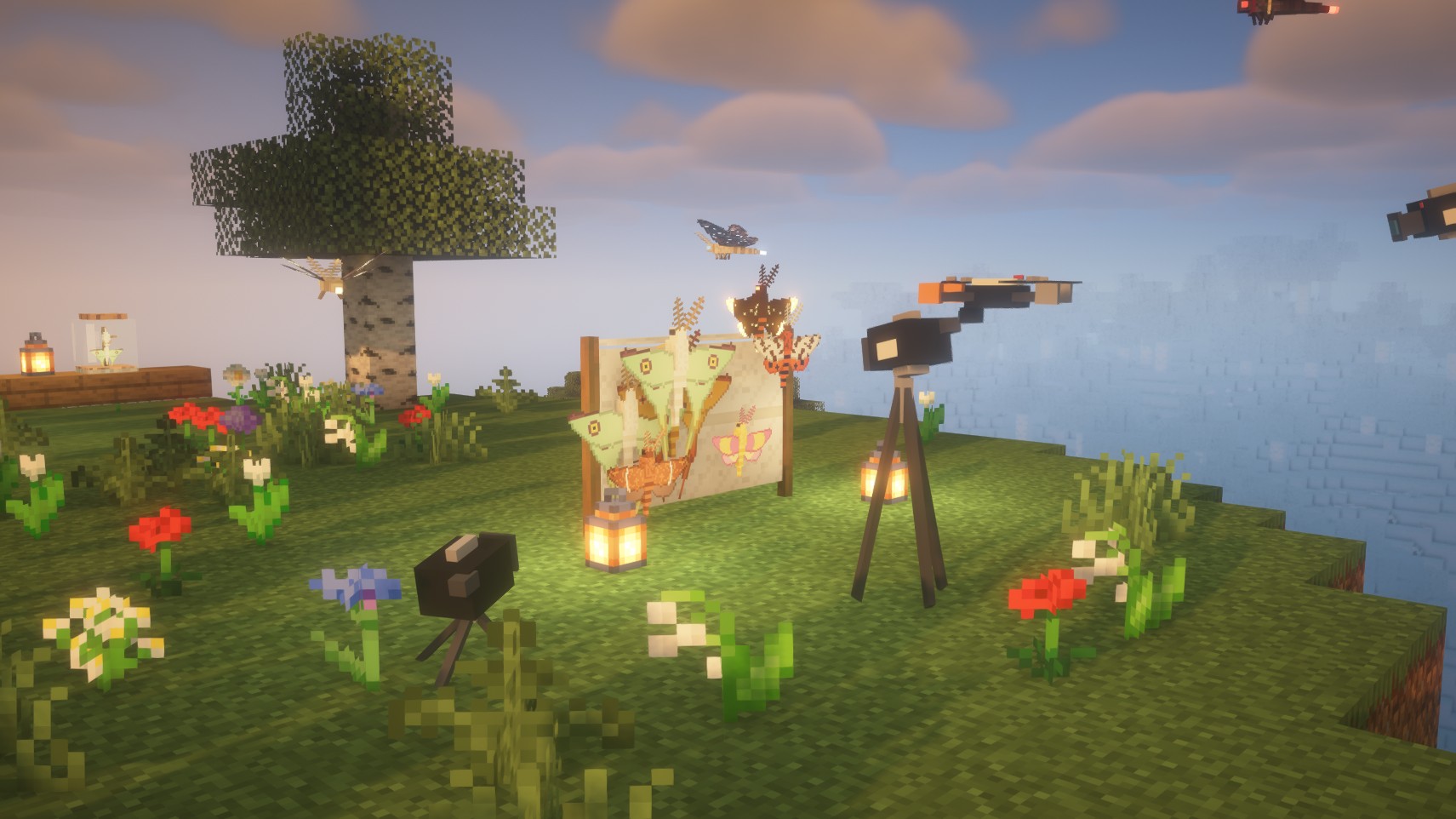
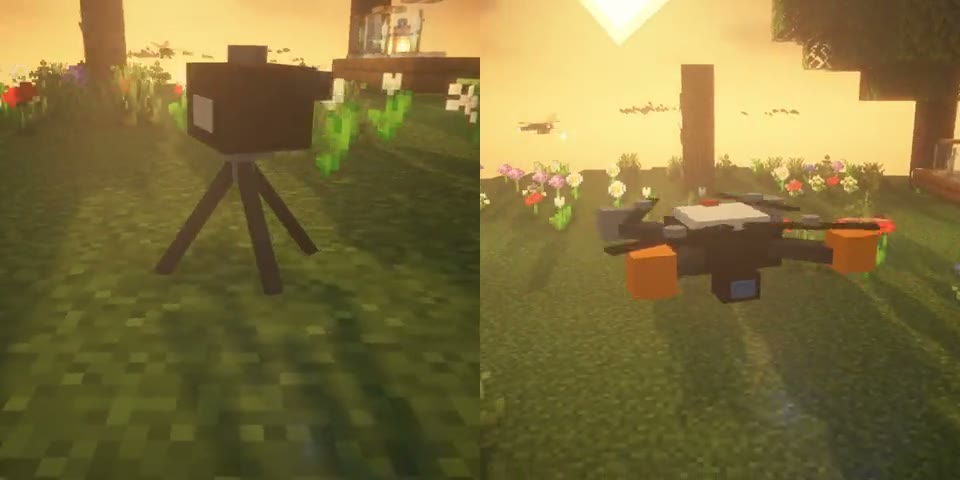
Lensbridge can show your cameras as little props: each tripod as a camera on legs, the drone with spinning rotors. They exist only on your computer; servers and other players never see them. Your own shots stay clean: a camera never films the props unless you (or your assistant) make it a "crew" camera for behind-the-scenes footage. Press Alt+P (or Show cameras in world in the Camera Manager) to see them yourself. With Jade installed, looking at one shows its name (for example Lensbridge camera: hero_1).
For modmakers: Showcase Stages
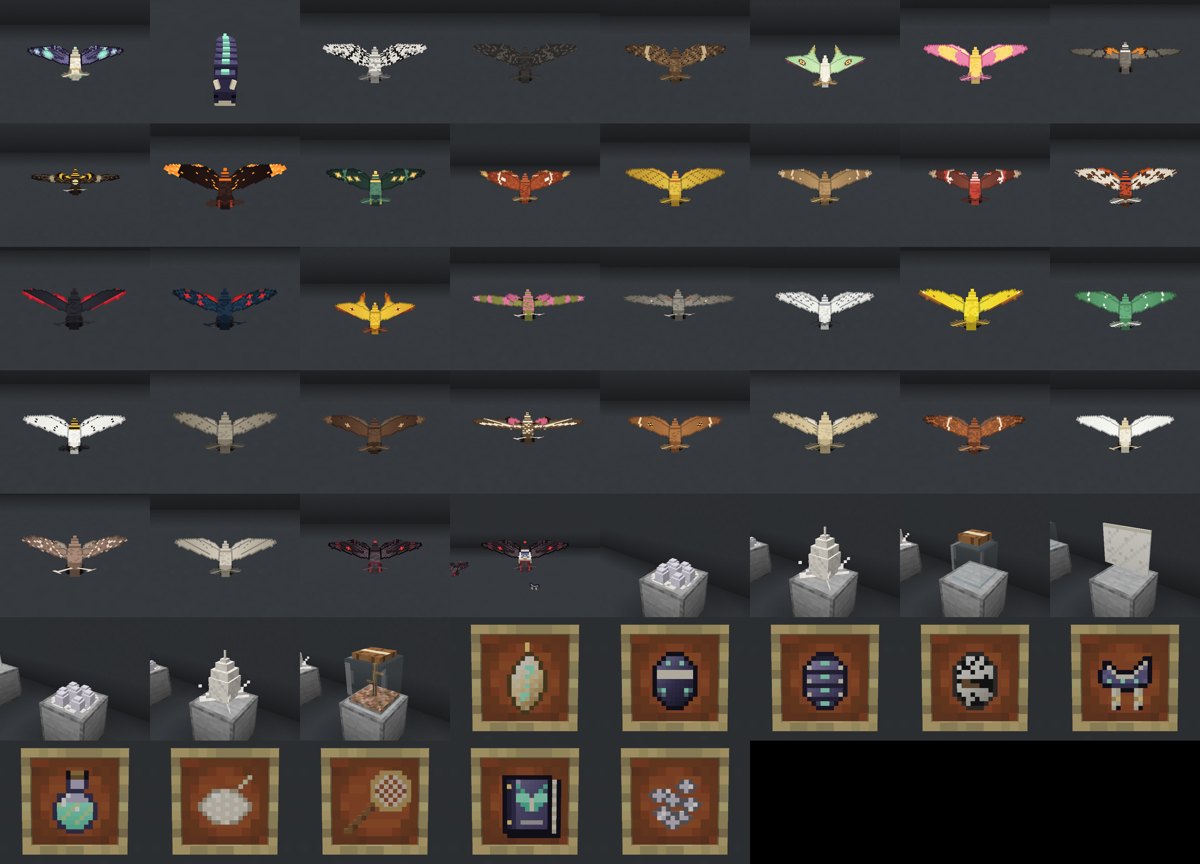
Ask your assistant to "make a showcase of my mod". Lensbridge reads your mod's mobs, blocks and items, builds a clean stage for them high in the sky (held still, on a grey backdrop), photographs every one, and saves the pictures, a contact sheet and an index page in lensbridge/showcase/<your mod>/. It can also make a 360° turntable of every mob. Needs cheats (or op on a server). The stage is built just under the sky limit and never on top of anything: if the space isn't empty, it stops and says so. When you're done, ask it to clear the stage; that removes it completely.
Getting out of anything
Press Esc. In any camera mode (taking control, drone, looking through a camera), Esc takes you back to your own view instead of opening the pause menu. Backspace works too, and so does the Back to my view button in the Camera Manager.
Letting an AI assistant help
Lensbridge can be connected to an AI assistant such as Claude (it speaks "MCP"). The assistant can:
- take screenshots of the game to check how things look
- set up cameras, lighting and scenes
- record orbits, camera moves, drone shots and multi-angle videos
- adjust cameras in the Camera Manager with you
You see the same cameras in the Camera Manager, and you can take control of any of them to fine-tune the angle.
Privacy and safety:
- Lensbridge only listens on your own computer (
127.0.0.1); nothing on the internet can reach it. - Every request needs the secret token in
config/lensbridge.json. Delete that file to get a new token. - Screenshots only ever contain the game's picture, never your desktop or other windows.
- The assistant's cameras are invisible to you by default. They render behind the scenes, so your screen doesn't jump around. If you want to watch, the assistant can turn on preview.
Once connected, the assistant reads Lensbridge's own guide by itself (the guide tool), so you can just tell it what you want: "set up three cameras around my build", "orbit the dragon at sunset", "show me how my new mob looks".
The guides are also inside the mod: open the Camera Manager (Alt+C) and click Help, or go to http://127.0.0.1:25599/docs.
Your secret key (token)
The first time it runs, Lensbridge makes a long random password called a token and saves it in config/lensbridge.json in your instance folder. Only programs that have it can use the connection, so another app or web page on your PC can't take over your game. Nothing on the internet can reach the connection at all.
- You only need it once, when you connect an assistant.
- Don't share it (or screenshots of the connect command).
- To make a new one, close Minecraft and delete
config/lensbridge.json; a new token is created on the next start. Assistants you connected before will need the new one.
Connect Claude Code
- In game, press Alt+C to open the Camera Manager.
- Click Copy connect command.
- Paste it into a terminal and press Enter. That's it: start Claude Code and ask for a shot.
Other assistants that support MCP over HTTP: connect to http://127.0.0.1:25599/mcp with the header Authorization: Bearer <token>. To find the token yourself, open config/lensbridge.json in a text editor (Prism: right-click the instance → Folder → config) and copy the value after "token":, without the quotes.
Playing on servers
Lensbridge keeps to a server's rules by default, because two of its features would be unfair in multiplayer:
- Free cameras (the drone, looking through your cameras, AI director shots) can see through walls.
- Letting an AI act for you (moving, looking, pressing keys, clicking menus, chatting, running commands) is a bot, as far as most servers are concerned.
| Where you are | Free cameras | AI acting for you |
|---|---|---|
| Singleplayer, or hosting a LAN world | Yes | Yes |
| A server without Lensbridge | If you're an operator, or in spectator mode | If you're an operator |
| A server with Lensbridge installed | Whatever the server owner set | Whatever the server owner set |
Screenshots of your own view, recording what you see, placing cameras and the Camera Manager work everywhere. If you lose permission while using a camera (say an operator removes your op status), you're put back in your own view.
For server owners
Put the same Lensbridge .jar in the server's mods folder. Players without Lensbridge can still join. After the first start, edit config/lensbridge-server.toml:
freeCameras = "OPS"   # OPS (operators and spectators), EVERYONE or NOBODY
aiControl = "OPS"     # OPS, EVERYONE or NOBODY
Changes apply within a few seconds, without a restart. With a permission mod such as LuckPerms you can also allow or deny it per player or group with the permission nodes lensbridge.free_cameras and lensbridge.ai_control. Commands an AI runs still need their normal permissions either way.
Troubleshooting
| Problem | Fix |
|---|---|
| A hotkey does nothing | Check Options → Controls → Key Binds for a clash, and make sure you're holding Alt. |
| Alt+C doesn't open a browser | Open http://127.0.0.1:25599/ui yourself and add #<token> from config/lensbridge.json to the end of the address. |
| The Camera Manager says "unauthorized" | Open it with Alt+C (it adds the token for you). |
| I'm stuck looking through a camera | Press Esc. |
| Videos aren't created, only pictures | Install ffmpeg (see Install), or set its full path in config/lensbridge.json ("ffmpeg": "C:/ffmpeg/bin/ffmpeg.exe"). |
| A camera shows the wrong place or empty sky | Cameras only see the world near you (your render distance). Walk or fly closer to the area. |
| Thumbnails look washed out or too bright | That's the scene's lighting (bright sky, white blocks, noon sun, shader fog). Try darker blocks behind the subject, or evening light. |
| The game pauses when I click away | Lensbridge stops that by default (keepRunningUnfocused). Make sure it's true in the config. |
Config file (`config/lensbridge.json`)
| Setting | Default | Meaning |
|---|---|---|
enabled | true | Turn the local connection on or off |
port | 25599 | Port of the local connection and the Camera Manager |
token | random | Secret key; delete it to generate a new one |
captureDir | lensbridge | Folder for screenshots and videos |
keepRunningUnfocused | true | Don't pause or slow down when the window isn't focused |
stealthCapture | true | Assistant cameras render behind the scenes (your screen doesn't change) |
ffmpeg | ffmpeg | Path to ffmpeg for video |
previewMaxEdge | 1280 | Size of the small previews sent to an assistant |
Shot recipes
Step-by-step recipes for common shots. Ask your assistant for one by name, or run the tools yourself.
Drone recipe
drone_fly {"mode":"follow","target":{"player":true},"distance":7,"height":5,"fov":70}   # automatic aerial follow-me
record    {"seconds":8,"fps":30,"hide_hud":true}                                     # while you (or a mob) move
drone_fly {"mode":"dronie","target":{"nearest":"mothlight:lumen"},"seconds":8,"distance":22,"height":14}
capture_program {"seconds":9.5,"fps":30,"name":"dronie"}                             # frame-exact
tripod_ring {"cx":10,"cy":65,"cz":4,"count":4,"radius":4.5} ; multicam {"seconds":4} # 4 synced angles
Cinematic recipe
find_entities   {"type":"mothlight:lumen"}                                  # → id 4321
camera_orbit    {"target":{"entity":4321},"radius":3,"height":0.8,"speed":30,"fov":50}
screenshot      {"hide_hud":true}                                           # check the framing
capture_program {"seconds":12,"fps":30,"name":"lumen_orbit"}                # frame-exact 360° → MP4

path_mark {"name":"glide","reset":true}   ... move the view ...   path_mark {"name":"glide"}  (repeat)
path_show {"name":"glide"}                                                  # see the rail
camera_rail {"path":"glide","seconds":10,"target":{"nearest":"mothlight:lumen"}}
record {"seconds":10,"fps":30}                                              # live, real time

scene {"freeze":true}                                                       # perfectly smooth moving subjects:
camera_follow {"target":{"entity":4321},"distance":3}
capture_program {"seconds":5,"fps":20,"tick_step":1,"name":"chase"}
Promo recipe
scene        {"time":"sunset","weather":"clear","freeze":true}     # everything holds still
window_size  {"width":1920,"height":1080}
camera_look_at {"x":10,"y":70,"z":4,"tx":12,"ty":68.5,"tz":8,"fov":50}
screenshot   {"hide_hud":true,"name":"hero_shot"}
capture_orbit {"cx":12,"cy":68.5,"cz":8,"radius":4,"height":1.2,"frames":240,"fps":60,"name":"turntable","gif":true}
capture_path {"seconds":8,"fps":60,"keyframes":[{"x":0,"y":72,"z":0,"look_at":[12,68,8]},
              {"x":8,"y":70,"z":2,"look_at":[12,68,8],"fov":45},{"x":14,"y":69,"z":5,"look_at":[12,68.5,8],"fov":35}]}
scene        {"freeze":false}
camera_release {}
Speed is always true unless you ask for a timelapse.
recordcaptures in real time: frames stream straight into ffmpeg, and if a grab is late the previous frame is repeated, so a 7 s clip is exactly 7 s of game time.capture_orbit,capture_path,capture_programandmulticamrender frame by frame, so the camera is always smooth.worldcontrols the world during the render:sync(default): the server tick rate is scaled to the capture speed, and frames are paced when capture is faster than real time, so mobs move at their true speed.step: frozen, then stepped exactly 20/fps ticks per frame, for perfect smoothness.frozen: everything held still.free: the world runs at full speed = a timelapse look.
- Timelapse on purpose:
record {"seconds":120,"timelapse_interval":2}takes one frame every 2 s of game time.
Limits
- The director camera only shows chunks the player has loaded. For far shots, move the player too (spectator +
/tp). - The capture resolution is the window size. Use
window_sizefor 1080p, 1440p or 4K-wide windows. command,sceneand other world changes need op on the server.- Multiplayer manners: on a server, free cameras (they see through walls) need operator status or spectator mode, and tools that act as the player (
look,hold_keys,press,hotbar,chat,command,screen_*) need operator status. Singleplayer is unrestricted. A server that installs Lensbridge sets its own rules inconfig/lensbridge-server.toml(freeCameras,aiControl: OPS / EVERYONE / NOBODY) and permission mods can use the nodeslensbridge.free_camerasandlensbridge.ai_control. See the user guide, "Playing on servers". - If the game window is minimised, nothing renders and captures time out.
See ROADMAP.md for what's next.
Build
./gradlew build # → build/libs/lensbridge-<version>.jar
License
MIT
For AI agents
Show
This is the guide Lensbridge gives an AI assistant when it connects (the guide tool). You never need to read it, but it shows how the assistant is told to work.
You are driving a live Minecraft client that a person may be playing or watching. Lensbridge gives you eyes (game-only screenshots), cameras (director camera, tripods, drone), staging (time, weather, freeze) and capture (stills, orbits, rails, drone shots, multicam, real-time video). This guide is how to use it well. The full tool list with arguments: call guide {"name":"tools"} (also in docs/TOOLS.md, and at http://127.0.0.1:25599/docs/tools).
0. Connect
- MCP Streamable HTTP:
http://127.0.0.1:25599/mcpwith headerAuthorization: Bearer <token>. The token is in<game dir>/config/lensbridge.json. - REST mirror for scripts:
POST /api/<tool>with the JSON arguments as the body.GET /api/lists tools and schemas.GET /healthneeds no token. - Results are MCP content blocks: text, plus a JPEG preview image for visual tools. Full-size files are saved on disk and their paths are in the text.
- Always start with
status: is a world loaded, is a screen (menu) open, where is the player, what's the camera state, are shaders on.
1. Ground rules (non-negotiable)
- Never use the player's own view as your camera. Don't
look,hold_keysor walk the player to frame a shot. Use the director camera (camera_look_at), tripods, the drone or camera moves. They're detached from the player and, with stealth capture, invisible on the player's screen.- You may move the player near a location (e.g.
command tp) only so its chunks load: cameras only see what's loaded around the player. Ask first if the person is playing. - Use the player as a subject (e.g. drone follow) only when asked.
- You may move the player near a location (e.g.
- Clean up after yourself. Remove cameras you placed for a job (
tripod_remove {"group":"tmp"}removes a whole name group),stage_clearstages,props {"enabled":false}. - Don't leave the player stuck. If you turn on
camera_preview,tripod_previewortripod_edit, finish withexit_camera. Alwayscamera_releasewhen your session ends. - Never build a scene block by block with hundreds of
commandcalls; it's slow and the person hates it. Use onefill, a structure, or a datapack function run by a single/functioncall (see §4). - Freeze before staging (
scene {"freeze":true}) so nothing hatches, grows, wanders or despawns mid-shoot. Unfreeze when done. - Verify with your eyes and say what you actually saw. Open the saved images; don't assume a shot worked. Report problems honestly, including your own staging mistakes.
- Show results to the person. Put the image and video file paths in your reply (the host can embed them). Videos are the point when they ask for video.
- Respect server rules. On a server, free cameras and tools that act as the player (
look,hold_keys,press,hotbar,chat,command,screen_click...) may be refused: the error says why. Don't try to work around it; tell the person (an operator or the server owner can allow it; see the user guide, "Playing on servers"). Singleplayer is unrestricted.
2. Core workflow
status                                   # world loaded? menu open? (close_screen if a menu is in the way)
scene  {"look":"qa"}                     # honest neutral light: shaders off, morning sun, clear, day cycle stopped
scene  {"freeze":true}                   # hold the world still
...stage the subject (one function / structure)...
tripod_place / tripod_ring               # cameras around the subject (or camera_look_at for a one-off)
tripod_thumbs {"group":"hero"}           # cheap stealth previews to check framing
tripod_shots  {"names":[...]}            # full-size stills + a contact sheet
... look at the files, fix framing (tripod_update / tripod_nudge), re-shoot ...
scene  {"freeze":false} ; camera_release
3. Lighting and looks
scene {"look": ...}presets:qa(shaders off, morning, clear: use it for checking how things really look),noon,golden,sunset,blue_hour,night,dawn,overcast.{"shaders": true|false}toggles Iris if installed.- Washed-out pictures come from white or very bright backdrops, noon sun and shader fog. Measure them: mean brightness above ~200 with low contrast is too bright.
- For QA, use mid/dark gray backdrops (
gray_concrete) andlook: qa. - For promo, use natural sets at
goldenornight.
- For QA, use mid/dark gray backdrops (
- Check important visuals twice: shaders off (what most players see) and shaders on (what the person plays with).
4. Staging a scene (fast)
- Write a datapack into the world's
datapacks/folder, thenreloadand runfunction <ns>:build. One command builds hundreds of blocks and entities instantly.- Data pack format for 1.21.11:
pack_format94 (min_format94). - Functions can't use
/tick(permission level). Sendtick freezeas its owncommand.
- Data pack format for 1.21.11:
- Display mobs: summon with
NoAI:1b,PersistenceRequired:1b,Invulnerable:1b,Silent:1band an explicitRotationso they face the camera. - Killing then freezing leaves corpses. Mobs killed right before
tick freezestay mid-death forever: red tint, tipped over, overlapping the new ones. Run your clear step, let ~3 s of normal ticks pass, then build and freeze. - Backdrops: put a wall behind each row relative to its camera. Check that no wall sits between a camera and its subject; we once hid a whole item wall behind a row's backdrop.
- Blocks with timers (eggs, cocoons, crops) advance while you stage. Freeze first; for exact mid-stage visuals, set their timer fields via scoreboard math in the function.
4b. Showcase Stages (a whole mod in two calls)
For "show me everything in my mod" or listing images:
scene {"look":"qa"}
stage_build {"namespace":"mymod"}                  # mobs, blocks and items from the registries, built in the sky, world frozen
stage_shoot {}                                     # a still per exhibit + contact_sheet.png + index.md in captures/showcase/mymod/
stage_shoot {"orbits":true}                        # also a 360 turntable per mob
stage_clear {}                                     # remove it, unfreeze (or stage_shoot {"clear":true})
- Variants that registries can't know about go in
extra:{kind:"mob", id:"mymod:dragon", nbt:"Color:2", label:"Blue dragon"}(nbt without braces). Leave the generic entry out withexclude. elevation(default 38°): flat subjects (wings, rugs) read best at 40-55°, upright mobs at 15-25°.- The stage goes just under the build limit above the player. It refuses to build into blocks, entities or unloaded chunks; pick other
x/y/zrather than passingforce:true(which clears whatever is there). A newstage_buildreplaces the previous stage;stage_clearalso releases the chunks it forceloaded. - Check the contact sheet, then open single shots for anything that looks off.
5. Framing rules
- Flat subjects (wings, banners, items lying down, rugs): shoot from above at ~45–60°. Eye-level shots show flat planes edge-on, as thin lines.
- Distance scales with size. For a subject of width
wblocks at FOV 50, start at distance ≈0.6 + 1.1·w, and add more for things with tails, antennae or long parts. Check the thumbnail and back off until nothing is cropped. - Front-facing: rotate mobs so they face the camera (
Rotation:[0f,0f]faces south/+Z; place the camera south of them). - Use
tripod_ringfor N even angles around a subject, andtripod_nudge(forward/right/up, yaw/pitch, fov) to fine-tune. - Thumbnails (
tripod_thumbs) are cheap. Iterate on framing with them, thentripod_shotsonce. - The person can fine-tune any camera themselves: Camera Manager (
/ui, Alt+C) → ✋ Take control. Offer it when exact taste matters.
6. Video: speed is always true (unless asked)
record: real time from whatever view is live (director camera, drone, tripod). Late frames are repeated, never sped up. Settimelapse_intervalonly when a timelapse is wanted.capture_orbit,capture_path,capture_programandmulticamrender frame by frame, so camera motion is perfectly smooth.worldcontrols the world during the render:sync(default): the world moves at true speed.step: frozen, then stepped 20/fps ticks per frame, for perfectly smooth moving subjects.frozen: everything held still.free: a deliberate timelapse look.
- Live moves (
camera_orbit,camera_rail,camera_follow,drone_fly...) keep running in the background. Render them withcapture_program, or film them live withrecord. - Drone for organic aerial footage:
follow(auto aerial follow-me),dronie,reveal,topdown,orbit,mission(waypoints),fpv. Rails and orbits for precise, repeatable moves. - Multicam = the same action from every enabled tripod, in sync, one MP4 per angle.
- Behind-the-scenes shots:
props {"enabled":true,"crew":["drone"]}shows camera props (tripods as cameras on legs, the drone with spinning rotors, the current rail as markers). Only the cameras listed increwsee them (director,droneor tripod names), a camera never sees its own prop, and the player sees them only withplayer_view. So multicam and tripod shots stay clean while a crew drone films the rig. Turn them off afterwards. - Turntables of a mob:
capture_orbit {"target":{"entity":id}, "fps":60, "frames":240, "world":"step"}.auto_center(on by default with an entity target) finds where the model really is, which is often well above or beside the entity's position, and picks a radius so it fills ~70% of the frame. Passradius/heightto override.stepat 60 fps is perfectly smooth: the world advances exactly 20/60 tick per frame with interpolated animation.- Swap subjects with the world running for a few seconds (kill + summon), then freeze. A mob killed while frozen stays as a frozen corpse and may be picked as the next target.
7. Verifying visuals (QA)
- Shoot every exhibit up close, open each image, and list looks right / broken with evidence.
- Contact sheets are small. Open the full-size file before calling something fine.
- Known traps:
- Stale frames: fixed in 0.3.1+ (warm-up after idle,
glFinishin stealth batches). Since 0.3.7 a capture also waits until a frame was really drawn from your camera, so a shot can't come back as the player's own view. If consecutive shots look identical when they shouldn't, compare image hashes and re-shoot. - Shader switches rebuild all terrain;
scenenow waits for that before returning. Shots taken right after a relaunch or teleport may still need a second try. - Wrong colors / red tint on mobs means dying entities (see §4).
- Empty shots of blocks that "should be there" mean they hatched, despawned or were never placed. Check with
command execute if block .... - Cropped big subjects means the distance formula is too small for that size.
- Stale frames: fixed in 0.3.1+ (warm-up after idle,
- Measure brightness and contrast when someone says "washed out". Don't argue from vibes.
8. Working with the person
- They see your cameras and thumbnails in the Camera Manager. Name tripods with group prefixes (
hero_,wm_,jar_) so the panel groups them. - If they're playing, keep
camera_previewoff (stealth) so their screen never jumps. If they want to watch, turn it on, and turn it off again afterwards. - Hotkeys they have: Alt+C manager, Alt+D drone, Alt+T tripod, Alt+N cycle, Alt+R record, Esc exits any camera mode.
- Ask before long or disruptive operations (resizing their window, teleporting them, changing shaders while they play).
9. File locations
| What | Where |
|---|---|
| Screenshots | <game dir>/lensbridge/screenshots/ |
| Videos + contact sheets | <game dir>/lensbridge/videos/ |
| Thumbnails | <game dir>/lensbridge/thumbs/ |
| Tripods | <game dir>/config/lensbridge/tripods.json |
| Saved paths | <game dir>/config/lensbridge/paths/ |
| Config + token | <game dir>/config/lensbridge.json |
Tool reference
Show
Generated from a running Lensbridge by tools/gen_tool_reference.py (65 tools). Every tool is available over MCP (tools/call) and REST (POST /api/<tool> with the arguments as JSON).
Observe
status
Game state: in-world?, open screen, player position/rotation/dimension/health/gamemode, time, weather, FPS, window size, server, director camera, capture folder.
screenshot
Capture the game view (the game's own framebuffer only - never the desktop). Saves a full-size PNG and returns a preview image. Use it to SEE what is happening.
| Argument | Type | Required | Notes |
|---|---|---|---|
hide_hud | boolean | Hide HUD/hand for a clean shot (default false) | |
name | string | File name (without .png); default is a timestamp | |
settle_frames | integer | Frames to wait before capture (default 3) | |
preview_size | integer | Longest edge of the returned preview (default from config) |
inspect
What the player is looking at (block or entity), nearby entities with positions and names, held items and hotbar.
| Argument | Type | Required | Notes |
|---|---|---|---|
radius | number | Entity search radius (default 12) | |
max_entities | integer | Max entities listed (default 30) |
chat_log
Chat and system messages the client received (command feedback included). Pass 'since' = last id you saw to get only new lines.
| Argument | Type | Required | Notes |
|---|---|---|---|
since | integer | Only lines with id greater than this (default 0) |
wait
Wait for game ticks / frames / milliseconds (let things happen before the next screenshot).
| Argument | Type | Required | Notes |
|---|---|---|---|
ticks | integer | Game ticks (20 per second) | |
frames | integer | Rendered frames | |
millis | integer | Milliseconds |
find_entities
Find loaded entities by type and/or name (to lock the camera on them). Returns id, type, name, position and distance from the player.
| Argument | Type | Required | Notes |
|---|---|---|---|
type | string | e.g. mothlight:lumen (substring match) | |
name | string | Name contains (case-insensitive) | |
limit | integer | Default 20 |
list_captures
List recent captures (screenshots, videos, frame folders) with full paths.
| Argument | Type | Required | Notes |
|---|---|---|---|
limit | integer | Default 20 |
Act (player input)
command
Run a command as the player (no leading slash needed). Needs op for most commands. Feedback appears in chat_log.
| Argument | Type | Required | Notes |
|---|---|---|---|
command | string | yes | e.g. 'time set midnight' |
chat
Send a chat message as the player.
| Argument | Type | Required | Notes |
|---|---|---|---|
message | string | yes | Message text |
look
Turn the player's head: absolute yaw/pitch, or look at a world position.
| Argument | Type | Required | Notes |
|---|---|---|---|
yaw | number | Degrees (0 = south/+Z, 90 = west, 180 = north, -90 = east) | |
pitch | number | Degrees (-90 up .. 90 down) | |
x | number | Look-at target X | |
y | number | Look-at target Y | |
z | number | Look-at target Z |
hold_keys
Hold movement/action keys for a number of ticks (20 = 1 s), e.g. {"keys":{"forward":40,"jump":5}}. Keys: forward back left right jump sneak sprint use attack drop, or any key mapping id (e.g. key.mothlight.glide_drop).
| Argument | Type | Required | Notes |
|---|---|---|---|
keys | object | yes | Map of key -> ticks to hold (0 releases) |
wait | boolean | Block until all keys are released (default true) |
press
Tap a key once (a click): use, attack, drop, inventory, swap_offhand, pick_block, jump, or any key mapping id (e.g. key.lensbridge.drone).
| Argument | Type | Required | Notes |
|---|---|---|---|
key | string | yes | Key name |
hotbar
Select a hotbar slot (1-9) and report what is held.
| Argument | Type | Required | Notes |
|---|---|---|---|
slot | integer | yes | 1-9 |
close_screen
Close any open GUI/screen (inventory, menu, chat...).
release_inputs
Release every held key and return the camera to the player.
Stage & look
scene
Stage a scene with one call (sends commands; needs op): time, weather, freeze the world (/tick freeze) so everything holds still for shots, step frozen ticks, clear the weather/time cycle.
| Argument | Type | Required | Notes |
|---|---|---|---|
look | string | Lighting preset: qa (shaders off, morning light, clear - honest neutral look), noon, golden (low warm sun), sunset, blue_hour, night, dawn, overcast | |
shaders | boolean | Iris shaders on/off (if Iris is installed) | |
time | string | day / noon / sunset / night / midnight / sunrise / or a tick number | |
weather | string | clear / rain / thunder | |
freeze | boolean | true = /tick freeze, false = /tick unfreeze | |
step | integer | Advance a frozen world by N ticks | |
lock_time | boolean | Stop the day cycle (gamerule) |
hud
Show or hide the HUD (like F1).
| Argument | Type | Required | Notes |
|---|---|---|---|
visible | boolean | yes | true = show |
window_size
Resize the game window (e.g. 1920x1080 for promo captures). Captures use the window resolution.
| Argument | Type | Required | Notes |
|---|---|---|---|
width | integer | yes | |
height | integer | yes |
Director camera
camera_set
Director camera: place a free camera (independent of the player; the player is drawn too). Stay within the player's loaded chunks. Use camera_release to return to normal.
| Argument | Type | Required | Notes |
|---|---|---|---|
x | number | yes | |
y | number | yes | |
z | number | yes | |
yaw | number | Degrees (0 = south/+Z) | |
pitch | number | Degrees (+ = down) | |
roll | number | Degrees (Dutch angle) | |
fov | number | Degrees (default: player setting) | |
relative | boolean | x/y/z are offsets from the player (default false) |
camera_look_at
Director camera at a position, aimed at a target point (great for framing a subject).
| Argument | Type | Required | Notes |
|---|---|---|---|
x | number | yes | camera X |
y | number | yes | camera Y |
z | number | yes | camera Z |
tx | number | yes | target X |
ty | number | yes | target Y |
tz | number | yes | target Z |
fov | number | Degrees | |
roll | number | Degrees |
camera_preview
Show the director camera live on the player's screen (on), or keep it hidden so captures never disturb the player's view (off, default).
| Argument | Type | Required | Notes |
|---|---|---|---|
on | boolean | yes |
camera_release
Return to the normal player camera.
exit_camera
Return the player to their own view from any camera mode (edit -> cancel, drone -> land, preview -> off). Same as pressing Esc in game.
Cinematic moves
camera_lock
Target lock: the camera holds its position (given x/y/z, or the current view) and keeps the target framed as it moves. Target: {"entity": id} | {"nearest": "minecraft:pig"} | {"point": [x,y,z]} | {"player": true}; optional "offset": [dx,dy,dz] for the aim point.
| Argument | Type | Required | Notes |
|---|---|---|---|
target | object | yes | Target: {"entity": id} / {"nearest": "minecraft:pig"} / {"point": [x,y,z]} / {"player": true}; optional "offset": [dx,dy,dz] for the aim point. |
x | number | Camera X (optional) | |
y | number | ||
z | number | ||
relative | boolean | x/y/z relative to the player | |
fov | number | Degrees | |
smoothing | number | 0 = snap, 0.9 = very smooth (default 0.6) |
camera_orbit
Live orbit around a target (follows it if it moves) - 360 turntable views. Target: {"entity": id} | {"nearest": "minecraft:pig"} | {"point": [x,y,z]} | {"player": true}; optional "offset": [dx,dy,dz] for the aim point.
| Argument | Type | Required | Notes |
|---|---|---|---|
target | object | yes | Target: {"entity": id} / {"nearest": "minecraft:pig"} / {"point": [x,y,z]} / {"player": true}; optional "offset": [dx,dy,dz] for the aim point. |
radius | number | Default 4 | |
height | number | Above the aim point (default 1) | |
speed | number | Degrees/second, negative = other way (default 30) | |
start_angle | number | Degrees (default 0) | |
sweep | number | Stop after N degrees (0 = endless) | |
look_height | number | Aim offset above the target (default 0) | |
fov | number | Degrees |
camera_pan
Live pan: fixed position, the view sweeps horizontally (360 panorama pans).
| Argument | Type | Required | Notes |
|---|---|---|---|
x | number | Camera X (default: current view) | |
y | number | ||
z | number | ||
relative | boolean | x/y/z relative to the player | |
start_yaw | number | Degrees (default: current) | |
speed | number | Degrees/second (default 20) | |
sweep | number | Degrees then stop (default 360, 0 = endless) | |
pitch | number | Degrees (default: current) | |
fov | number | Degrees |
camera_rail
Rail cam: glide along a saved path or keyframes (smooth spline). Optionally lock onto a target while travelling. Modes: once, loop, pingpong.
| Argument | Type | Required | Notes |
|---|---|---|---|
path | string | Saved path name | |
keyframes | array | Or inline keyframes [{x,y,z,yaw?,pitch?,look_at?,fov?,roll?}] | |
seconds | number | Time for one pass (default 8) | |
mode | string | once / loop / pingpong (default once) | |
easing | string | smooth / linear (default smooth) | |
target | object | Optional lock. Target: {"entity": id} / {"nearest": "minecraft:pig"} / {"point": [x,y,z]} / {"player": true}; optional "offset": [dx,dy,dz] for the aim point. |
camera_follow
Chase cam: stays behind/above the target relative to its facing, smoothly. Great for riding, flying and walking shots. Target: {"entity": id} | {"nearest": "minecraft:pig"} | {"point": [x,y,z]} | {"player": true}; optional "offset": [dx,dy,dz] for the aim point.
| Argument | Type | Required | Notes |
|---|---|---|---|
target | object | yes | Target: {"entity": id} / {"nearest": "minecraft:pig"} / {"point": [x,y,z]} / {"player": true}; optional "offset": [dx,dy,dz] for the aim point. |
distance | number | Behind, blocks (default 4) | |
height | number | Above (default 1.5) | |
side | number | Right (+) / left (-) offset (default 0) | |
smoothing | number | 0..0.95 (default 0.85) | |
fov | number | Degrees |
camera_dolly_zoom
Vertigo / dolly zoom: the camera pushes toward (or pulls away from) the target while the FOV changes so the subject stays the same size and the background warps. Target: {"entity": id} | {"nearest": "minecraft:pig"} | {"point": [x,y,z]} | {"player": true}; optional "offset": [dx,dy,dz] for the aim point.
| Argument | Type | Required | Notes |
|---|---|---|---|
target | object | yes | Target: {"entity": id} / {"nearest": "minecraft:pig"} / {"point": [x,y,z]} / {"player": true}; optional "offset": [dx,dy,dz] for the aim point. |
x | number | Start X (default: current view) | |
y | number | ||
z | number | ||
end_distance | number | Blocks from the target at the end (default 2) | |
seconds | number | Default 4 | |
fov | number | Starting FOV (default 30) |
Drone
drone_fly
Fly a PHYSICS DRONE camera (inertia, speed/accel limits, banking, stabilised gimbal, hover wobble, ground clearance) - real drone footage. Autonomous modes: hover (hold, gimbal tracks target), mission (fly waypoints, optional target to keep framed), orbit (physics orbit, natural lag+bank), follow (auto follow-me aerial: trails, banks, frames the subject), dronie (pull back + up away from subject), reveal (rise up, gimbal tilts down), topdown (god view, slow spin), fpv (racing-drone lines: hard banks, no gimbal), pilot (sticks via drone_control). Starts from the current view unless x/y/z given. Then screenshot / record (live) / capture_program (frame-exact).
| Argument | Type | Required | Notes |
|---|---|---|---|
mode | string | yes | hover / mission / orbit / follow / dronie / reveal / topdown / fpv / pilot |
target | object | Subject: {entity:id} / {nearest:type} / {point:[x,y,z]} / {player:true} | |
waypoints | array | mission/fpv: [{x,y,z,hold?}] (hold = seconds to hover there) | |
loop | boolean | mission/fpv: loop the waypoints | |
x | number | Start X (default: current view) | |
y | number | ||
z | number | ||
max_speed | number | blocks/s (default 6; fpv 14) | |
accel | number | blocks/s^2 (default 4; fpv 12) | |
yaw_rate | number | deg/s (default 60; fpv 180) | |
bank | number | Banking amount (default 3) | |
wobble | number | Hover wobble 0..1 (default 0.5) | |
clearance | number | Min blocks above ground (default 1) | |
distance | number | follow: behind (default 6); dronie: pull-back blocks (default 18); reveal: forward push (default 2) | |
height | number | follow: above (default 4); dronie: climb (default 10); reveal: rise (default 8); topdown: altitude (default 20); orbit: above (default 3) | |
radius | number | orbit radius (default 8) | |
speed | number | orbit / topdown spin deg/s (default 20 / 6) | |
seconds | number | dronie / reveal length (default 8) | |
fov | number | Degrees |
drone_control
Pilot the drone with sticks (starts a pilot-mode drone at the current view if needed). Values -1..1, held for 'seconds' then centred.
| Argument | Type | Required | Notes |
|---|---|---|---|
forward | number | ||
right | number | ||
up | number | ||
yaw | number | Turn (+ = right) | |
gimbal | number | Tilt (+ = down) | |
seconds | number | Default 1 | |
max_speed | number | blocks/s (default 6) |
drone_status
Drone telemetry: mode, altitude above ground, speed, yaw, gimbal.
Tripods & Camera Manager
tripod_place
Place a named fixed camera (tripod) - at the current view, or at x/y/z aimed at look_at or tracking a target. Use several around a subject for multiple angles.
| Argument | Type | Required | Notes |
|---|---|---|---|
name | string | Default tripod_N | |
x | number | ||
y | number | ||
z | number | ||
look_at | array | [x,y,z] fixed aim point | |
target | object | Track a subject instead (aims every frame) | |
fov | number | Degrees |
tripod_ring
Place a ring of tripods around a subject in one go (e.g. 4 or 6 angles), all aimed at it.
| Argument | Type | Required | Notes |
|---|---|---|---|
cx | number | yes | |
cy | number | yes | |
cz | number | yes | |
count | integer | Default 4 | |
radius | number | Default 5 | |
height | number | Above the subject (default 1.5) | |
start_angle | number | Degrees (default 45) | |
fov | number | ||
prefix | string | Name prefix (default 'ring') |
tripod_list
List tripods.
tripod_all
All tripods as JSON (name, group, x, y, z, yaw, pitch, fov, enabled, track, has_thumb).
tripod_update
Edit a tripod: any of x, y, z, yaw, pitch, fov, enabled, rename (new_name), look_at [x,y,z] (re-aim), track (target object, or null to stop tracking).
| Argument | Type | Required | Notes |
|---|---|---|---|
name | string | yes | |
x | number | ||
y | number | ||
z | number | ||
yaw | number | ||
pitch | number | ||
fov | number | ||
enabled | boolean | ||
new_name | string | ||
look_at | array | ||
track | object |
tripod_nudge
Nudge a tripod relative to its own view: forward/right/up in blocks, yaw/pitch/fov in degrees.
| Argument | Type | Required | Notes |
|---|---|---|---|
name | string | yes | |
forward | number | ||
right | number | ||
up | number | ||
yaw | number | ||
pitch | number | ||
fov | number |
tripod_set_from_view
Store the current view (director camera if active, else the player's eyes) into a tripod (creates it if missing). Fly the drone (K) or look around, then save the angle you like.
| Argument | Type | Required | Notes |
|---|---|---|---|
name | string | yes |
tripod_thumbs
Refresh tripod thumbnails (stealth - the player's screen doesn't change). Default: all.
| Argument | Type | Required | Notes |
|---|---|---|---|
names | array | Tripod names | |
group | string | Only this group |
tripod_preview
Show a tripod's view live on the player's screen (or 'off' to return to the player).
| Argument | Type | Required | Notes |
|---|---|---|---|
name | string | Tripod name, omit to turn preview off |
tripod_edit
Take control of a tripod in game: the player flies its camera (WASD/Space/Shift, mouse, scroll = FOV), Enter saves, Backspace cancels - or finish with tripod_edit_finish.
| Argument | Type | Required | Notes |
|---|---|---|---|
name | string | yes |
tripod_edit_finish
Finish taking control: save the current view into the tripod, or cancel.
| Argument | Type | Required | Notes |
|---|---|---|---|
save | boolean | Default true |
tripod_view
Look through a tripod (live).
| Argument | Type | Required | Notes |
|---|---|---|---|
name | string | yes |
tripod_remove
Remove a tripod, a whole group (name prefix before the first _ ), or all.
| Argument | Type | Required | Notes |
|---|---|---|---|
name | string | ||
group | string | e.g. 'sheet' removes sheet_wide, sheet_close... | |
all | boolean |
Capture
screenshot
Capture the game view (the game's own framebuffer only - never the desktop). Saves a full-size PNG and returns a preview image. Use it to SEE what is happening.
| Argument | Type | Required | Notes |
|---|---|---|---|
hide_hud | boolean | Hide HUD/hand for a clean shot (default false) | |
name | string | File name (without .png); default is a timestamp | |
settle_frames | integer | Frames to wait before capture (default 3) | |
preview_size | integer | Longest edge of the returned preview (default from config) |
record
Record the live view (player camera, director camera, drone...) in REAL TIME - the clip lasts exactly as long as the action (late frames are repeated, never sped up). Set timelapse_interval for a timelapse.
| Argument | Type | Required | Notes |
|---|---|---|---|
seconds | number | Default 5 | |
fps | integer | Default 30 | |
timelapse_interval | number | Only for timelapses: seconds of game time between frames (e.g. 2) | |
name | string | Output name | |
hide_hud | boolean | default false | |
gif | boolean | Also make a GIF |
capture_orbit
Turntable shot: the director camera circles a point (or a target entity's centre) and every frame is saved, then encoded to MP4 (and optional GIF) with ffmpeg. Returns a contact sheet preview. Tip: scene freeze first; world=step + fps 60 for the smoothest turntables.
| Argument | Type | Required | Notes |
|---|---|---|---|
cx | number | Centre X (or use target) | |
cy | number | Centre Y | |
cz | number | Centre Z | |
target | object | Centre on a target instead: {entity:id} / {nearest:type}; centre = middle of its hitbox, plus optional offset [dx,dy,dz] | |
auto_center | boolean | With an entity target (default true): measure where the MODEL really is (two probe views, with/without the entity) and centre on it; radius defaults to fit the model | |
radius | number | Distance (default 4) | |
height | number | Camera height above centre (default 1.5) | |
frames | integer | Frame count (default 120) | |
fps | integer | Playback fps (default 30) | |
start_angle | number | Degrees (default 0) | |
sweep | number | Degrees to travel (default 360) | |
fov | number | Degrees | |
name | string | Output name | |
gif | boolean | Also make a GIF | |
hide_hud | boolean | default true | |
world | string | World speed during the render: sync (default - mobs move at true speed), frozen (world held still), step (frozen + world advanced exactly 20/fps ticks per frame, interpolated - perfectly smooth at any fps, e.g. 60), free (world runs at full speed = timelapse look). sync/frozen/step need op. |
capture_path
Cinematic camera move through keyframes, saved frame by frame and encoded to MP4. Keyframes: [{x,y,z, yaw?,pitch?, look_at?:[x,y,z], fov?, roll?}, ...] (at least 2). Smooth Catmull-Rom path; angles from look_at if given.
| Argument | Type | Required | Notes |
|---|---|---|---|
keyframes | array | List of keyframe objects | |
path | string | Or: name of a saved path | |
seconds | number | Duration (default 6) | |
fps | integer | Default 30 | |
easing | string | smooth (ease in/out, default) / linear | |
name | string | Output name | |
gif | boolean | Also make a GIF | |
hide_hud | boolean | default true | |
world | string | World speed during the render: sync (default - mobs move at true speed), frozen (world held still), step (frozen + world advanced exactly 20/fps ticks per frame, interpolated - perfectly smooth at any fps, e.g. 60), free (world runs at full speed = timelapse look). sync/frozen/step need op. |
capture_program
Render the currently playing camera move (orbit/pan/rail/follow/dolly/lock) frame by frame at an exact frame rate, then encode to MP4. The world is kept at its true speed (world=sync) so mobs move naturally; world=step gives perfectly smooth motion; world=free is a timelapse look.
| Argument | Type | Required | Notes |
|---|---|---|---|
seconds | number | Length (default: the move's own duration, or 6) | |
fps | integer | Default 30 | |
world | string | World speed during the render: sync (default - mobs move at true speed), frozen (world held still), step (frozen + world advanced exactly 20/fps ticks per frame, interpolated - perfectly smooth at any fps, e.g. 60), free (world runs at full speed = timelapse look). sync/frozen/step need op. | |
tick_step | integer | Legacy: >0 = world 'step' | |
name | string | Output name | |
gif | boolean | Also make a GIF | |
hide_hud | boolean | default true |
tripod_shots
Multi-angle stills: a clean screenshot from every tripod (or the named ones), plus one contact sheet of all angles.
| Argument | Type | Required | Notes |
|---|---|---|---|
names | array | Tripod names (default all) | |
name | string | Output prefix |
multicam
Synced multi-angle VIDEO at true world speed: freezes the world and, tick by tick, renders every tripod's view, so you get one MP4 per angle with identical action (perfect for editing between angles). Needs op.
| Argument | Type | Required | Notes |
|---|---|---|---|
seconds | number | Default 5 | |
fps | integer | Default 20 (1 world tick per frame) | |
names | array | Tripod names (default all) | |
name | string | Output prefix |
Paths
path_mark
Build a rail interactively: append the current view (director camera, or where the player is looking from) as a keyframe to a named path. Fly/walk, mark, repeat. Optional look_at makes that key aim at a point.
| Argument | Type | Required | Notes |
|---|---|---|---|
name | string | yes | Path name |
look_at | array | [x,y,z] aim point for this key | |
fov | number | FOV for this key | |
reset | boolean | Start the path over |
path_save
Save keyframes as a named path (for camera_rail / capture_path / path_show).
| Argument | Type | Required | Notes |
|---|---|---|---|
name | string | yes | |
keyframes | array | yes | [{x,y,z,yaw?,pitch?,look_at?,fov?,roll?}, ...] |
path_get
Return a saved path's keyframes as JSON (to edit and path_save back).
| Argument | Type | Required | Notes |
|---|---|---|---|
name | string | yes |
path_list
List saved paths with keyframe count and length.
path_delete
Delete a saved path.
| Argument | Type | Required | Notes |
|---|---|---|---|
name | string | yes |
path_show
Preview a path in the world: draws the rail with particles (only on this client) for a few seconds, with the keyframes marked. Take a screenshot to check the line before rendering.
| Argument | Type | Required | Notes |
|---|---|---|---|
name | string | yes | Saved path name |
seconds | number | Default 10 |
Other
screen_info
The open GUI screen (if any): its class, the GUI scale and the window size, for screen_click.
screen_click
Click inside the open GUI screen (inventory, a mod's book or menu...) at window pixel x,y, the same coordinates as in a screenshot of the game. For testing mod screens.
screen_scroll
Scroll the mouse wheel over the open GUI screen at window pixel x,y.
guide
Read Lensbridge's bundled docs. Start every session with the agent guide (default): ground rules, workflow, lighting, staging, framing and video. Other names: tools (full tool reference), user-guide, readme.
props
Camera props for behind-the-scenes shots: visible models of the tripods (camera on legs), the drone (spinning rotors) and the current rail. Client-only. Normal shots stay clean: props show only in the player's view if player_view is on, and in captures from 'crew' cameras (e.g. a drone or a tripod named in crew). A camera never sees its own prop.
stage_build
Showcase Stage: build a clean display of a mod's content in one go - mobs held still (NoAI) in rows, blocks on plinths, items in frames, a floor and backdrop walls - high in the sky so nothing gets in the way. Reads the mod's registered entity types, blocks and items. Freezes the world when done. Then call stage_shoot. Needs cheats/op.
stage_shoot
Showcase Stage: frame and shoot every exhibit of the last stage_build - mobs auto-centred from slightly above, blocks in three-quarter view, items face-on - plus a contact sheet and an index.md, in captures/showcase/<namespace>/. Optional 360 turntables of the mobs.
stage_clear
Remove the last Showcase Stage (blocks, mobs, item frames) and unfreeze the world.